
Change your sign-in settings
- Open Account Dashboard and select Security in the left column. Review your primary address, verified backup and code destination.
- Choose a setting, enter your current password and confirm the code delivered to your existing sign-in mailbox. Adding or replacing an email also requires a second code at the new address. Check Spam or Junk if the message is missing.
- To use Windows Hello or another passkey, choose Add a passkey, verify your account and follow your device prompt. The next time you sign in, choose Use a passkey. Manage individual keys under Your passkeys.
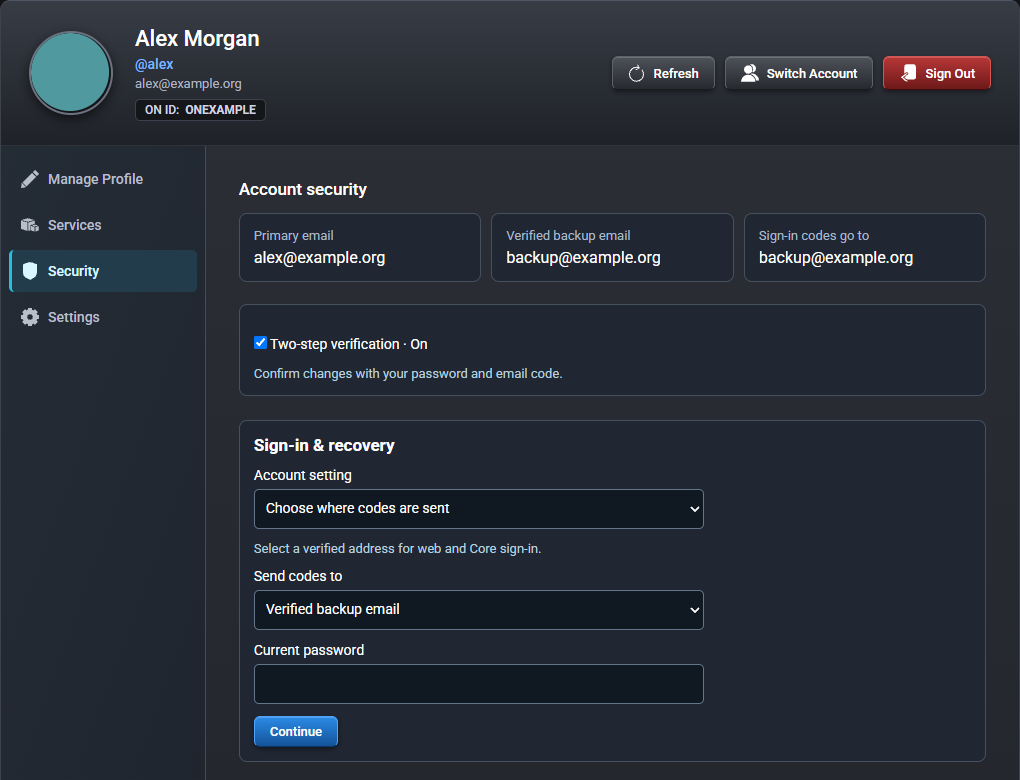
Primary email and username can each change once every 30 days. Adding, replacing or removing a backup email starts a seven-day waiting period for the next backup change. You can switch the code destination between verified addresses. If you lose access, open Recover account on the sign-in screen and supply a reachable contact address.
Open Active sessions in Core Security or the Security section of the ON Account website. Terminating a session makes that device or browser sign in again.
Account preferences are synchronized with the website. Preferences do not install missing services or make unfinished services available. Update downloads and automatic installation have separate controls in Core and Store.
Account support lets you submit a request and read support replies. For app content, use Report in Store so the report includes its target and service.
Confirm a browser sign-in on your phone
- Keep ON Core open on a phone already signed in to your account. Sign in with your password in the browser.
- Compare the number shown in the browser with the three choices in Core. Select the matching number to continue.
- If you did not request sign-in, decline it. Review the details in Dashboard → Security → Account activity.
Recover access
Forgot email or ON ID opens the account support form. Forgot password lets you choose a primary or verified backup email. If you set a recovery question, answer it after verifying the email code. The new password signs out existing sessions.
Two-step verification is on by default. To change it, open Dashboard → Security and confirm your current password and email code. Passkeys remain available.